๐ก Upgrade your Wi-Fi gameโbecause buffering is so last decade!
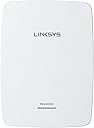
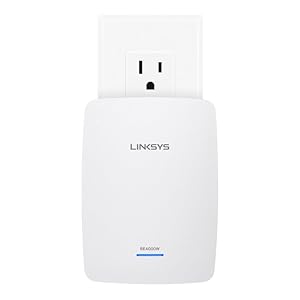
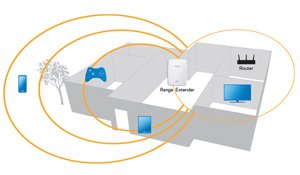
The Linksys RE4000W N600 PRO Wi-Fi Range Extender (Renewed) is a dual-band 802.11n device designed to amplify your existing wireless network without the need for Ethernet cables. Certified refurbished with a 90-day warranty, it offers manual setup flexibility including static IP configuration, making it ideal for professionals seeking reliable, extended Wi-Fi coverage in home or office environments.


| ASIN | B00U1M8LIU |
| Best Sellers Rank | #86,667 in Amazon Renewed ( See Top 100 in Amazon Renewed ) #3,351 in Repeaters #34,344 in Renewed Computers & Accessories |
| Brand | Linksys |
| Compatible Devices | Wi-Fi enabled devices |
| Connector Type | RJ45 |
| Customer Reviews | 3.6 out of 5 stars 326 Reviews |
| Frequency Bands Supported | 2.4 GHz , 5 GHz |
| Item Weight | 8 Ounces |
| Manufacturer | Linksys |
| Mfr Part Number | RE4000W-RM |
| Model Number | RE4000W-RM |
| UPC | 745883681723 |
| Warranty Description | 90 days limited warranty |
| Wireless Communication Standard | 802.11n |
| Wireless Compability | 802.11n |
S**K
HERE are the instructions to get this thing working....For REALS. NO Ethernet Cord Required!!!!
The guy who posted instructions before made a good attempt, but sadly, he only gave ya half. DISCLAIMER: I am a techy and I live to figure out things. This extender works, but you gotta do it the right way. No rebooting your router or all that jazz. I promise. Oh, and NO ETHERNET CORD NEEDED!!!!!! I do agree though, the interface is garbage. Its soooo freaking old! But it does the job. Its wireless N. It works. Now..... So here it is folks. I agree this thing can be a pain to setup, but works well to extend the coverage of your wifi network. I guarantee you will get the extender setup easily using this method. Thumbs up! Yeah! Steps: FOLLOW THEM TO THE Tee!! 1. Ok, so open up the bloody thing and plug it up/in. The green light will start to blink. 2. Take a laptop and go to your network settings. Look up wireless networks. Disconnect from your CURRENT NETWORK and you will see a "linksys extender 78683 or whatever.." network. 3. Then, go to a webpage or browser and type this: 192.168.1.1 (this is the default ip address) VERY IMPORTANT!!! 4. A bloody security page/login will pop up. Type "admin" for the admin box, and "admin" for the password box. Press enter/login. Previous reviewer said to leave password blank. That is wrong! So wrong! 5. Once logged in, you will see the basic setup page. Look immediately next to the "Setup" tab, you will see a "Wireless" tab. Click on this. 6. The first thing you might be greeted with is the "Site Survey" page. Skip it.Seriously, SKIP IT. Go to the next tab: "Basic Wireless Settings" 7. Select the "Manual" option and this is key/crux: enter your CURRENT WIFI SETTINGS, whatever they are. SAME AS YOUR WIFI NETWORK!!!! If you are running 2.4Ghz and 5Ghz networks, enter the info for both of your wireless bands. NOTE: If you are just running a 2.4Ghz network, then just erase the info in the 5Ghz box or leave as is. If you do leave it blank, you won't be able to extend the wireless signal for your 5Ghz network. Up to you really. 8. Click "Save Settings" towards the bottom of the page. 9. The extender will reboot and save the settings. The Linksys Extender wifi SSID's should now dissapear. Ok, so go to your network browser. I usually click on ThisPC or My Computer, depending on if you run Windows 7 or 8.1 and on the left hand side of the screen you will look for the link that says "Network". This is where all the computers on your network show up. (Ex. Bedroom pc, Living room pc etc.) 10. Now this is very important. The router gave the Extender a random ip address. We dont know what it is, but luckily, the device in the network advertises what ip address it has. Once there, you should see a device closer to the bottom of the page labelled "RE40000W" Just double click on that bad boy and then it will take you to the new setup page for the extender under the new ip address. Cool! NOTE: If you messup up any of the settings or you can't connect again, just look near the top of the extender. There should be small hole labelled "Reset" Just take a pen and push the button until the light starts to blink again. Then in a few minutes the device will allow you to log in again under "Linksys Extender 33686" or whatever. You can then start over and redo the settings again. 11. Not done yet fella! Now, You gotta set a STATIC IP address, so that you can login and change crap whenever you want. I must say though, this step is really optional. You could leave the settings from here on out as is, and you would be able to connect, but I strongly recommend setting a static ip. 12. Once logged back in with admin/admin, the first page under "setup is what you want. Change the setting under the device name from "Automatic Configuration - DHCP" to "Static IP". Then enter the IP address YOU WANT to use to access the extender to change and configure settings in the first set of boxes. (Ex. if your network/router ip address is 192.168.0.1, then a good IP address for the extender might be 192.168.0.50 or whatever number you like really between 1 and 254) 13. Leave the Subnet mask as is. (255.255.255.0) 14. Go to the "Default gateway" box and enter your default gateway/router ip address. (Should be 192.168.0.1 or 192.168.1.1, or whatever you set your ROUTER IP address to before. It should be generally one of those two.) 15. Go to "Save Settings" and save that bad boy. Router will reboot. Upon rebooting, you have to now navigate to the IP address you set at the beginning of step 12. Type that sucker in and boom! You have access. 16. Congratulations! You just connected the extender to your wireless network! Hooray and stuff! HOWEVER.... 17. Would you like to change the password? Its easy too. Just go to the third tab "Administration" and click on the box with a billion dots inside and enter your new password. Enter it again in the next box to confirm. Then, you know the deal. Save it. 18. Extender may or may not reboot for this. Mines didn't. But yours might. No worries, just wait a 'lil bit. There you go my peeps! All done. Oh, and Happy Thanksgiving and Merry Christmas. Amazon...you owe me. I want a free echo dot.
A**R
Hours spent with Help Desk and still stopped working after a week
I was torn on whether to buy this product given the disparate reviews, specifically the difficulty setting it up. But Iโve purchased four routers from Linksys before and have always been satisfied. Bad decision, the reviews were dead on. I am not a tech expert by any means, but hardly a novice either. I was warned by the reviews that there were no instructions included, only a CD, which is worthless because I no longer have a laptop that has a CD player. I figured I would find instructions online. They had instructions, but they were not very clear. Ultimately, I had a chat session with their help desk for two hours on a Friday night, trying to get it working. That ended when they had me reboot something and it dropped the chat session. I tried to restart the chat session, but they were closed for the night! Brilliant. I tried a second chat session the next day for nearly the same amount of time, but had to end it when I had to leave the house. I hadnโt planned on setting aside the entire weekend for a simple install. On Sunday, called their help desk this time, spent nearly two more hours and finally got it all working. It worked greatโฆ for five days then just stopped working. I tried repeating the setup (I had gotten pretty good by then through endless repetition with the help desk and the notes I kept) but to no avail. I tried to return the item to Amazon, but missed their 30 day window. Fortunately, they did credit my account given the difficulties with the product. Five Stars for Amazon and they will keep me coming back. Linksys however, is a write-off.
H**3
Value Depends upon your Home Configuration
Once I finally got the Range Extender properly configured and located in the right spot, it is providing exactly the performance for which I was looking. As other reviewers have noted, the installation may not be as turnkey as most users would like. I am retired but am still fairly technical. I have a computer science degree, worked as a systems engineer for a computer company, worked in R&D for a computer company, and managed systems and software development for two companies. I usually have no difficulty getting a new device installed and properly configured. It simply would not work for me with the supplied installation CD. I went on the Linksys web site and downloaded the latest firmware (build 6) but going to 192.168.1.1 didn't take me to the Range Extender set up; it took me to my wireless router set up. I went into the Control Panel into the Network and Sharing Center and clicked on See Full Map. The map itself does not show the Range Extender but below the map is listed the devices discovered that could not be placed on the map. There I found the RE4000W. By right-clicking on that icon, you get the option to View Device Webpage. Clicking on that, I was indeed brought to the set up screen for the Range Extender. For me, its ip address was 192.168.1.247. This allowed me to log in (username blank, password admin), install the latest firmware and change the device's password to something other than the default admin for security purposes. I then downloaded the latest product installation program from the Linksys web site and ran it to install/configure the Range Extender. Note that it did not connect the first time, but the installation screen lists a number of possible reasons. One of the reasons is that you don't want your installation device (a laptop in my case) too close to the Range Extender itself. I was about five feet away. When I moved into another room, I was able to get a successful installation. Now the challenge was where to located the Range Extender "permanently" in the home. My wireless router is located in our basement, and I purchased this Range Extender to help my laptop connectivity from my home office on the main level of the house. Prior to the Range Extender installation, if I used my laptop in the kitchen which is directly above the wireless router location in the basement, I got a five bar connection and speedtest.net showed a 24 mbps download speed (I pay for a 20 mbps connection). If I moved my laptop to my home office, I got a two bar connection and speedtest.net showed that my download speed dropped to 1.8 mbps. My hope was that the Range Extender would allow me to get 24 mbps download speed in the home office. My first thought was to place the Range Extender in the kitchen directly above the wireless router location. That gave the Range Extender a five bar connection at both 2.4 Ghz and 5.0 Ghz. However, the laptop in my office only showed a three bar connection the the Range Extender and the download speed was only 2.6 mbps. (Note that in this location the signal needed to go through six walls.) I then moved the Range Extender to the office and observed the reverse of the problem - a good connection from my laptop to the Range Extender and a poor connection from the Range Extender to the wireless router (no connectivity at 5.0 Ghz and two bars at 2.4 Ghz). I then changed the Range Extender location to be on a wall in the kitchen between the original location and the home office. It gave me connectivity at both 2.4 Ghz and 5.0 Ghz but the speed was almost the same: 2.8 mbps. (Note that in this location the signal needed to go through four walls.) My "last" spot to try was putting the Range Extender in the wall outlet on our kitchen island. This location has a direct line of sight from the laptop to the Range Extender and is just 30 feet away. Voila!!! The connection from the Range Extender to the wireless router has five bars at 2.4 Ghz and four bars at 5.0 Ghz, and the connection from the Range Extender to the laptop has a five bar connection and a download speed of 25 mbps - exactly what I had expected. I rate this Very Good, because it is able to achieve the performance objective for my situation. However, I can well imagine that other home configurations may not be so forgiving. If I take my laptop to our master bedroom on the second floor of the house, my download speed drops to 20 mbps. If take it to the second floor bedroom on the opposite side of the house, the download speed drops to 2.0 mbps. Clearly, its range is significantly affected by the number of walls through which the signal must pass as well as what is in those walls.
S**R
Overall this is a fine router with good range
It was a bit difficult to configure it because it couldn't connect to my router. But then I used WPS and it connect well. The rest through the wizard was straight-forward. You have to be a bit patient because the "searching" steps may take a bit longer...and waiting seems like a long time. I have this in my basement patio door to send into my garage through my yard 50 ft away with trees in the way. Received signal and strength fine.
J**M
It is best to assign a static IP address to the extender
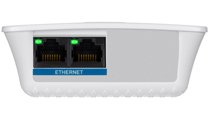
No issue at all setting it up manually! (1) Reset the extender, (2) connect RJ45 cable between computer and extender, (3) plug extender and wait for solid light, (4) open browser and type 192.168.1.1, (5) a window opens up asking for a username and password; leave the User Name blank and enter โadminโ in the Password field and then, click Log In, (6) Click on Wireless > Basic Wireless Settings, (7) Click on the SSID for the wireless network that you want to connect, (8) enter password for the wireless network, (9) click on save settings and wait until the settings are updated, (10) unplug router and extender, (11) remove RJ45 cable connecting extender & computer, (12) plug in the router and wait for it to come back online, (13) once router is back online plug in extender and wait for solid light. You are now connected!!! It is best to assign a static IP address to the extender. If you do so, enter the static IP address on a browser to verify that there is connection to the extender. Finally upgrade the firmware and then take the extender to it's intended place!
A**R
here is what window 10 users should do to set it up
It only gets a 3 star because of the following. The unit when I connected to said it was a RE2000 now I do not know if it is re4000 or not since the software on the device said RE2000. Now I am afraid that it is not the AC repeater I was hoping to get for my AC1750 It is working but the software did not work on windows 10 again just like it did not work on my RE2000. I had to connect it up to Ethernet. I later found out I could look under the network setting and right click and select open web page so that made it easier to configure. Update for window 10 users this is what I did ok for window 10 users I would recommened you do the following. I never got the software to work on my win 10 pc. Plug the unit into power and wait for the light to stop blinking and be on steady. Next go down to the tool bar clcickon the wireless symbol and select the Linksys????name and connect to it. Next open a browser and go to 192.168.1.1 enter admin and admin Go to wireless setting pick your signal and connect to it. Please note if you want to do both 2.4 and 5ghz you must connect to both. If you only want on to be repeated only select one. Note if you selected two and only want one you must restore fatory setting and start over. I hope this helps some one and makes it eaiser to configure
D**L
It's a proven pain in the a$$ and I wasted my money
I bought this to cover a dead spot in my house. When it works it works mediocre, but usually, several times a week, I have to unplug and plug the unit back in the get signal. I thought it was too far from the router so I plugged it in right next to it and it just doesn't work. It's a proven pain in the a$$ and I wasted my money. I guess I should have spent some more money and get something better. Sorry Linksys, this product is a fail. It works well when it is connected wired to the router, however in my setup it's not possible so to be fair I gave 2 stars instead of 1.
T**R
It just works.
Slam-bam, it just works. Though I don't like that I paid $35 for it, and the day it arrived, it's $25 on Amazon! The refurbed unit looks just like new. It took no more than 5 minutes to set it up using the included CD. You run the CD on a pc that's got a WiFi connection to your network. Plug the unit into a wall outlet very near that pc, wait for the green light to glow solid, then enter your WiFi password. Then move it to an outlet where you want to use it. (They tell you to plug it in somewhere that has at least 50% worth of signal, but I didn't bother. I just put it where I wanted to use it -- where I get just one WiFi bar right now.) You wait for the green light to glow solid again. And you're done. I get 5 bars where I used to get just one. It just works. I've tried using a second router to boost my signal across my house -- I spent hours, and it still didn't work right. THIS BABY IS THE SOLUTION.
Trustpilot
2 weeks ago
3 days ago