🎨 Elevate your art game with precision and speed that professionals swear by!
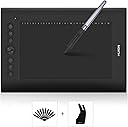
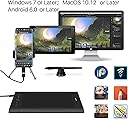
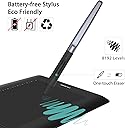
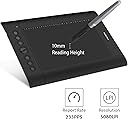
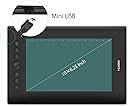
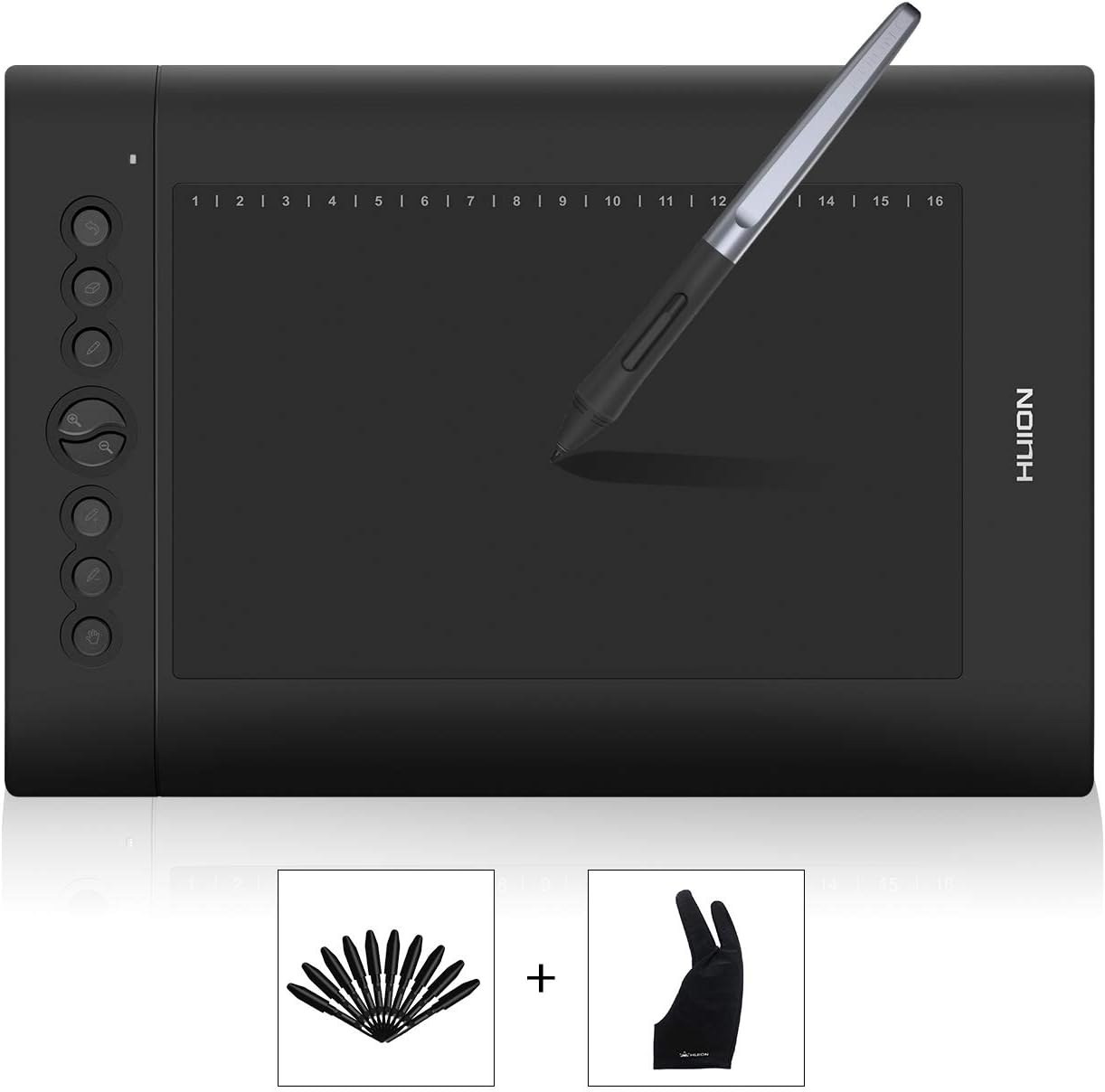
The Huion H610 Pro is a sleek, medium-sized graphics tablet featuring a large 10 x 6.25 inch active area with a paper-like texture, 8192 levels of pressure sensitivity for detailed control, and 233 PPS report rate for smooth, lag-free drawing. It offers 8 customizable express keys plus 16 soft keys, supports Windows and Mac OS, and includes a detachable USB cable for easy portability. Ideal for professional and aspiring digital artists seeking precision and efficiency without breaking the bank.


| ASIN | B00GIGGS6A |
| Active Surface Area | 10 inches x 6.25 inches |
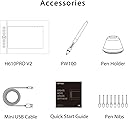
| Box Contents | Rechargeable Pen, Rechargeable Wire, USB Wire, User Manual, CD Driver, Pen Holder (4 Pen Tips, 1 Pen Tip Remove Tool) |
| Brand | HUION |
| Brand Name | HUION |
| Colour | Black |
| Compatible Devices | Personal Computer |
| Connectivity technology | USB |
| Customer Reviews | 4.3 out of 5 stars 3,173 Reviews |
| Display Type | LCD |
| Item Type Name | H610 Pro |
| Item Weight | 1 Pounds |
| Manufacturer | Huion |
| Manufacturer Part Number | H610 Pro |
| Model Name | H610PRO |
| Model Number | H610PRO-US |
| Model name | H610PRO |
| Native Resolution | 2048 levels |
| Network Connectivity Technology | USB |
| Operating System | Windows |
| Operating system | Windows |
| Pressure Sensitivity | 2048 Levels |
| Pressure sensitivity | 2048 Levels |
| Product Features | 2048 Pen Levels, 233 RPS, 5080LPI |
| Screen Size | 10 Inches |
| Special feature | 2048 Pen Levels, 233 RPS, 5080LPI |
| Specific Uses For Product | Painting, Drawing, Note-taking, Education |
| Target Audience | Student |
| UPC | 700729978238 889328067526 520324310727 603786577584 061111159445 700729978221 |
M**.
Great tablet for great price
I Have ordered this Tablet as my entry Aiptec tablet got damaged ( through my uncareful handling ). I wanted to buy Wacom first but because of the price tag I had to start to look for alternatives. After reading reviews I have decided to test this one ( in the worst case I could always return it if not happy ). I am working on Mac so as mentioned in lot of previous reviews it took me little bit time to install the drivers ( i did install it first before plugging in but on Mavericks on some reason it was detecting it as a keyboard and after turning computer on and off it wasnt detecting it but as I read somewhere else uninstall and additional drivers you could have on your mac for tablets ( in my case previous Aiptec one ) and it works just fine. Working with the tablet is a dream, the surface its not so smooth as Intuos Pro ( I use at work ) but I actually dont mind it and actually prefer it as my hand and pen doesnt slip so easy. Touch pad function would be great ( only because I am used to it from my work ) but for personal use I dont value it as a negative on this tablet, I just use touch pad on my laptop. The pen feels good in the hand, not to heavy and one deciding factor for me was that it doesnt need batteries and its rechargeable ( there is never enough spare batteries in my house ) so this is for me big plus point. The sound is bit weird sometimes when working with this tablet due to the surface - maybe when pressing harder ( as mentioned before ) but for me its performance factor which is important, not the sound and I do usually listen to the music anyway :D Overall very happy with this and for the price just perfect to what I need. ( just for explanation I am graphic designer and use it for my freelance work and photo retouch )
N**A
Overall a great tablet I would recommend to anyone
I was initially quite skeptical of Huion tablets due to often being told they're no good, just cheap knock-offs that are useless and a waste of money, but I was very surprised about this one once I got the chance to use it! For me personally there are many ups, and only a couple downs. I tested pen pressure in both PS CS6 and Paint Tool SAI, and both work wonderfully, though this is keeping in mind I use Windows 8.1 64BIT. Pros: - Reasonable size. I personally prefer drawing on larger tablets, and this tablet was actually a downgrade in size for me, but it's actually pretty dang good. It doesn't take up any room, it's out of the way, it's light weight. - Detachable USB cable to plug it in. All the tablets I've used in the past have been connected to an unmovable wire, which in MORE than one case has ended up with the wire becoming faulty after being bent in a certain position for too long, which inevitably broke the tablets and had them needing to be replaced. The fact you can take this one out is amazing, it gets rid of any hassle if you want to move the tablet and there's no random tangles or tugging to work it off of your desk. Plus, if it breaks all you need to do is buy a new cable, not a new tablet. - Rechargeable pen. The pen comes fully charged as soon as you open the box, and you can charge it whenever you're not using it ie. at night, which means no having to spend any money on those pricey AAA batteries! Hallelujah - Buttons to the left of the tablet. One thing I need that's hard to find on cheaper tablets is zoom in/out wheels or buttons on them, and they're actually why I went for this one in the first place. There's also an undo button, a 'move' button to move the canvas around if you're drawing, and an increase tool size and decrease tool size buttons, which is all great! - Pen nibs! The pen comes with a nib already in it, and the pen holder has 4 extra nibs in it too!! - Customisable shortcuts at the top. There's 10 built in buttons at the top that you can set your own shortcuts to, I've set 3 of mine to CTRL+S (save), CTRL+O (open), and CTRL+T (transform) so far and they respond immediately when clicked with the pen! Cons: - The drivers are kind of a pain in the backside to get working, or they were for me personally. I followed every step in the Windows manual (there's also a Mac manual) and for some reason they just wouldn't install correctly, even after deleting all previous tablet drivers. I eventually had to uninstall the ones I attempted to get working and then I had to go to their website to download drivers from there, which afterwards worked IMMEDIATELY, so it wasn't the biggest hassle but the thought of losing precious pen pressure can be incredibly off putting to artists like myself. - Left sided buttons. I'm not sure if turning the tablet upside down would make them useful for lefties, but set the regular way I feel it may be an issue for people who are left handed, like buttons getting pressed by the hand accidentally when drawing. Most tablets tend to be right and left friendly but I'm not sure about this one. - The pen feels a tiny bit flimsy. It might be because I'm used to holding heavy pens with batteries in them but I'm worried if I dropped this on a hard floor it would break or crack somehow. Overall it's a great tablet, and for those on a bit of a budget like myself I'd definitely recommend it. It seems like a cheap crappy knock off but it's the opposite, and is definitely worth your money if you're looking to get a reliable tablet. I think it would be a good starter tablet too!
N**S
The weight of the pen is nice, not sure how long the battery will last ...
OK, well there seems to be an issue with the drivers. Contrary to belief to get the pressure working you have to install the accompanying software CD (Well for me anyway). I had the same problem as one review that stated there was no pressure on the pen; some people said to ignore the software CD that came with the package which is what I did initially. This was wrong in my case, if downloading straight from Huion you don't get all the extra bits that make it work properly. To summarise: The driver download from the Huion website included a less comprehensive tool set than the one off the accompanying disk. The driver from Huion website was not enough to get the pressure to work, I needed to install the driver off the provided CD for full functionality. This was installing using Windows 7 premium 64bit using Corel Paintshop pro x4 and I had never previously installed a tablet onto my system before. Use: After fiddling with the settings in Corel I can now do shading; digital drawings are now analogue to paper and pencil sketches. The weight of the pen is nice, not sure how long the battery will last but you get the rechargeable USB one with this package. It takes a single AAA so for the adventurous might be replaceable with a bit of soldering. Hot keys are customisable which is great the defaults aren't the same as Corel so I had to find out the key combinations and manually adjust them. There are also 16 hot cells across the top for even more functionality these can even be configured to launch programmes and websites if so desired. The tablet is wide screen format and the area for drawing can be changed for different aspect ratios. Conclusion: With a shaky start as the pressure on the pen didn't work initially, this tablet seems to fit the bill and I'm glad I didn't opt for the more expensive options out there especially as drawing is only my hobby. For the price point and eventual functionality this to me is a good tool.
R**R
Professional and exceptional value for money
Huion H610 Pro Graphics Tablet This review relates to the Huion H610 Pro graphics tablet. It does not cover the earlier Huion 610 tablet, which has a less sophisticated specification. The tablet was tested substantially, using Adobe Photoshop CS6. It has not been tested with other software. Further, this product was tested using a high-end laptop running Windows 7, with an i5 CPU and 8GB RAM. The tablet was not tested with a Mac computer. With Photoshop CS6, the Huion H610 Pro performed faultlessly. Specification The Huion H610 Pro has a specification as good as any available on the market. In my opinion, having used the 610 Pro continuously for some time now, it is as good – and possibly better – than the equivalent Wacom tablet; which by the way, is four times the price of the 610 Pro. 2048 pressure levels and extremely high resolution on the drawing area therefore makes the Huion H610 Pro a perfect device for the professional or advanced amateur. The fact that it has a rechargeable drawing pen is a bonus. Build and facility The Huion H610 Pro has programmable physical hot-keys along its left side, as well as programmable soft keys along the top of the active area. These graphical (non-physical) ‘soft keys’ however, are almost useless, simply because you cannot see them without shining a bright light on the tablet. The soft keys should be made much easier to see, as most professional users keep ambient light to a low level to avoid screen colour contamination. To its great credit however, this is about the only fault one can find with Huion H610 Pro. One other possible criticism is the detachable mini-USB cable. Whilst convenient and easily replaced in case of damage, the use of such cables, regardless of the device involved, increases wear on the mini-USB socket which will eventually become loose. It is therefore best to leave the cable attached to the tablet. The standard USB connection to the computer can be attached/detached as normal. The drawing area has a silk finish and feels very much like paper when drawing on it. The plastic casing is robust of high quality and the Huion H610 Pro looks what it is: a professional instrument. Using the Huion H610 Pro If you have not used a tablet before, you have a learning curve ahead of you. Yes, the Huion H610 Pro can be used as a mouse, but that is merely the most basic of its functions. Once the user is familiar with the tablet and when used with professional software, the Huion H610 Pro improves workflow, dramatically increases accuracy and makes the whole process of editing or creating digital images much more pleasurable. In short, once you have become used to the Huion H610 Pro, you will never again want to return to using a mouse for your graphical work. The H610 Pro’s programmable physical hot-keys can help, though this reviewer found using keyboard shortcuts to be far more efficient as they had already been learnt after many years experience. It is a matter of personal taste of course. As stated above, the almost invisible graphical ‘soft keys’ along the top of the active area are next to useless. Such would not be the case however if they were made much clearer to see. Perhaps an improvement for future products? Overall however, the Huion H610 Pro offers a totally professional working experience. Driver installation Many users have complained about the difficulty of installing appropriate drivers for Huion products. In this particular case however, there were no difficulties whatsoever in downloading the appropriate driver from the Huion website, installing or configuring the driver and its associated software. If users encounter driver installation problems, the following may be of help: Windows 7, 8.1 and 10 all have generic graphic tablet drivers. THESE SHOULD NOT BE USED. It is essential to a)remove any previously installed Huion, Wacom or other tablet drivers BEFORE trying to install the drivers/software for the Huion H610 Pro. It should also be noted that as all drivers make changes to the Windows Registry, any installed program should be removed using specialised removal software such as ‘Revo Uninstaller Pro’. Other suitable un-installation software is of course also available. The point is, such programs also remove erroneous registry entries, as well as the drivers themselves; something that is vital if problems are to be avoided. In short, as long as previously installed drivers are correctly removed – especially the registry entries – there should be no problems whatsoever installing the driver for the Huion H610 Pro. The driver also incorporates a configuration program for the Huion H610 Pro. This software is efficient and easy to use. Conclusion The Huion H610 Pro is professionally built and designed. No product is perfect, regardless of how much or how little it may cost. The only significant fault found with Huion H610 Pro however, is the lack of visibility of the graphical ‘soft keys’. If you are a professional user, this is unlikely to affect you as you will probably, like this reviewer, be using keyboard shortcuts anyway. The lack of visibility is nevertheless something that Huion should address in later versions. In terms of cost, the Huion H610 Pro offers exceptional value for money and is very hard to fault. The only tablet to come close to this quality is the similarly sized Wacom Pro tablet, which is at least four times the cost of the excellent Huion H610 Pro. The Huion H610 Pro is recommended for all users, be they a beginner, an advanced user or a professional. Huion customer service is also excellent and easily accessed by email. The support team were efficient and eager to solve any problems. The Huion H610 Pro is an excellent product with good support, and offers exceptional value for money. * Amazon’s service was, as usual, exemplary and the unit arrived next day, on time via DPD.
N**T
Excellent value, but drivers and Express Keys a bit tetchy!
I have been a user and fan of Wacom and after having the Wacom Pro large I have to say I was incredibly disappointed as the problems just piled up and Wacom were not terribly helpful. So I changed to this Huion based on reviews, a huge difference from a £350 monster tablet. I followed the instructions to install and everything went smoothly. I have heard that the drivers can be a nightmare but to be honest the driver that came with the tablet was easy yo install and worked fine. All in all I am very pleased, so far. So why just 3 Stars? Well, after turning the computer off for the night and then back on in hte morning, the Express Keys were not working as normally, some not working at all. Upon further investigation I discover that the driver supplied is not as good as the driver you can download direct from the Huion site! I downloaded it, uninstalled the original driver and then reinstalled the new. So far so good, although programming the keys is a pain in the butt and I still have not yet worked that out fully. My main desire was the zoom function when I do graphics. Apart from that, the tablet is as good as the Wacom which I am pleasantly surprised about. As a rule I always overlay the work area with a 0.5 sheet of clear plastic to protect the surface, something I would strongly advise.
B**Y
Great medium sized Tablet? YES.
So i've got 4 different graphic tablets now, this being the forth, and i've got to say it's a great piece of equipment. i have a monoprice 12x9, Huion H58L, and Wacom pen and touch. The weakest being the wacom, and yet also at the time of purchase, most expensive. important features being: 10 x 6.25 active area, equals to about a medium wacom surface. 5k LPI 233 response revolutions per second, nice. 2k pressure (pen) grainy surface, not as grainy as the H58L though, so not awesome pencil sounds =( very slim tablet and pen, and perhaps the most sexiest of graphic tablets out there, beside Wacom's. My reasoning for purchasing this, even though i already had a large surface 12x9 one, was because i had the H58L actually, nice more grainy surface, making those lovely drawing sounds, along with somehow the 5k LPI doing some magic compared to 4k LPI, i guess, because it just got easier sketching most things, so i wanted to get a larger surface of Huion, which is this one. Hard to install? NOPE. How to do it properly? Sure! Unplug any graphic tablets, then uninstall all tablet drivers, if you got windows tablet drivers, uninstall those as well, if it asks for restart afterwards, do it, then you can install the driver for this baby, and after that restart you should be able to plug it in BUT NOT BEFORE. And it works wonderfully too. Remember to get the newest drivers from Huion's own site, and if you got old, remember the above install method, also applies to updates. I already had the bat free ion powered pen before this purchase, and it's fantastic to have another spare, because these are expensive, buying them stand alone is half the price of the whole package, ouch! Only negative point is that you can't completely customize the buttons on the pen, would have liked to have had the ability to have one of them as space for obvious reasons but that's pretty much it. :) You can't get anything better for this price, if you are on the fence before jumping to a tablet monitor, i would recommend this one, competitive price and great features to boot. Now, if Huion would make some more different models of tablet monitors sexy as this one that would be quite exciting times indeed then. =)
D**S
If you're looking for a tablet, you NEED this one
I'm extremely new to art/drawing, but I knew that I didn't want to do it on pen and paper. So, after much reading, I bought a Huion. I'm going to give the good and the bad. And since the good outweighs the bad, I'll start with the bad to get it over with: THE BAD: - The drivers are a pain to install. A disc comes with the tablet, plus you can download one from the Huion website. But I had to e-mail support because neither worked. (They did, however, send me a new driver and this worked perfectly first time). - Don't bother reading the manual. I am a Mac user, and the Mac installation guide starts off as a Mac guide, then switches to a Windows guide, so I had to figure any troubleshooting out by myself. THE NEUTRAL: - The tablet is big. 10x6 is the size of the tracking surface, the frame of the tablet goes out several inches from this. Not a bad point, but something to note for anyone with limited room. - The pen/tablet settings are hidden away in the Applications folder on a Mac (nothing pops up on-screen and the guide gives no indication of course since it talks about PC not Mac), go to Applications > PenTabletSetting to pick your settings. - I was hoping the pen buttons could be programmed to undo/redo or zoom, but they only act as normal mouse buttons (there are limited options in the settings). This isn't a bad thing, just a personal preference of mine. - It makes 'drawing noises' when you sketch, and can get quite loud. Doesn't bother me, but some may wish to note this. I've actually seen someone buy another tablet because theirs DIDN'T make the noise they wanted. THE GOOD: - E-Mail support is VERY quick. They replied to my e-mail in under two hours with a new driver and were very apologetic and happy to help. Their English is very bad, but they solved my problem, so I can't complain. - The tablet itself works wonders. It's got fantastic tracking, picks up even the slightest of pen movements. Sensitivity is amazing, but if you just want bold, even lines, you can turn this off completely (or just down) and simply draw without pressing down hard. - Visually the tablet is gorgeous: sleek, matte finish, lightweight and very professional looking. - Easy to use, the hotkeys on the left work just perfectly, and I adjusted to them almost instantly over clicking or using my keyboard. - I've been drawing almost constantly on my tablet for the last 2-3 days (like 6 hours one day, 5 hours the next, and then approx 2 hours the day after that) and the nib isn't showing any signs of wear. The tablet comes with four extra nibs so I reckon they'll last me a while (replacements are about £10 for another 4). - Speaking of the pen, it has a realistic weight, is comfortable to hold (it's not slippy or anything), and it feels like you're using a pen or pencil when you draw. - Worth the money. It's not all that expensive, but it's an amazing piece of hardware that I'm extremely glad I bought.
D**N
Literally the WORST product I have ever bought
Literally the WORST product I have ever bought. Chucked it in the bin. Sometimes it would work, most of the time it wouldn't. Spent literally days - DAYS trying to get it to work. Uninstall drivers, reinstall drivers.....the manual they sent with it was for a previous version whose interface looked totally different so I didn't know if I had the right drivers installed to start with. The manual unbelievably says to use the CD rom for a mac install - MAC HAVE NO CD-ROMS!!!!! Trying to download the driver is a farce - the web page for the 610 pro that I had when you click on 610pro takes you to the drivers for a different product. Maybe a broken link - maybe you're meant to use them instead. But there is a separate entry if you look through all (9 pages worth) of drivers. So you're left with no instructions as to how to do it, no way to tell what driver you're meant to have, no idea how to install it (there's pages of people having to uninstall, reinstall and then you're not meant to plug it in when you're installing the drivers, but then it never recognises it). Finally I decided to call customer support. One phone number. In China. Seriously? You have been warned!
A**I
Prima Tablet zum angenehmen Preis!
Da ich ein sehr aktiver hobby-Comic-Zeichner bin, habe ich mein altes Intuos Stift-Tablet von Wacom seit über zwei Jahren praktisch täglich benutzt, und letztendlich hat das gute Stück dann doch das zeitliche gesegnet. Das Ding ist mittlerweile so zerkratzt, dass das Zeichnen darauf nur noch unangenehm ist, es neigt zum rumspacken und das Kabel ist kaputt, und weil sich das Ersetzen mit dem Kabellos-Adapter Dingens nicht wirklich lohnt wenn das Tablet selbst nicht mehr ganz frisch ist, hatte ich mich entschlossen lieber gleich ein ganz neues zu kaufen. Natürlich dachte ich erst an ein Wacom, weil ich bisjetzt zwei Tablets hatte, und beide waren Wacom, aber ich bin sicher dass alle wissen wie teuer die dinger sind. Daher hab ich dann nach etwas billigerem geguckt, und bin nach einer Weile des Kundenrezensionen-Durchforstens und mehreren Tablet-vergleichen auf das hübsche Huion H610 gestoßen. Rezensionen schienen gut, und ich dachte mir, ich kauf das mal auf gut Glück. Das gute Stück ist gestern Mittag angekommen, und nachdem ich es mit einigen wenigen Schwierigkeiten (Ich komme darauf zurück) installiert habe benutze ich es seit über 24 Stunden und bin äußerst zufrieden. Zur Installation: Die ist eigentlich recht simpel, aber der Huion Treiber ist ein Einzelgänger und wird nicht mit anderen zusammenarbeiten, Hat man also, wie ich, noch einen Wacom Treiber installiert, funktioniert nicht alles so wie es sollte. Dann aber keine Panik, einfach beide Treiber deinstallieren und dann den von Huion neu installieren, und alles wird gut! Zumindest war es bei mir so. Beim Installieren muss man dann ein paar mal den richtigen Ordner anklicken (der, der H610 Pro heißt), aber das steht auch alles im Handbuch (Ist allerdings nur auf English) und ist echt nicht besonders schwer. Wenn man alles installiert und den Computer neu gestartet hat, kann man die Knöpfe und alles einstellen. Das Programm dafür ist recht selbsterklärend und es geht schnell und ist leicht noch mal zu ändern, falls es einem doch nicht passt. Man kann außerdem einstellen, wie sensibel der Stift ist, usw. Ich hab mir noch nicht alles von dem Programm angeguckt, aber es ist echt nicht schwer, und auch auf Deutsch. Nun aber zum eigentlich interessanten Teil: Wie zeichnet es sich mit diesem Baby? Kurz gefasst: Super! Das Huion ist eigentlich sogar sensibler als mein altes Wacom wenn's zur Druckempfindlichkeit kommt. Ich bin in der Lage, sehr viel feinere Linien zu zeichnen, was beim kritzeln echt praktisch ist. Die Miene des Stiftes geht beim aufdrücken ein wenig in den Stift, so dass es ein sehr federndes Zeichengefühl ist - Ich weiß nicht, ob das was für jeden ist, aber mir gefällt es auf jeden fall! Das Tablet hängt kein bisschen, reagiert auf alles was ich mache und antwortet besser als mein altes Wacom auf's tippen mit der Stiftspitze als Mausersatz - und die Knöpfe funktionieren super und sind echt praktisch beim Zeichnen. Ein winziger Makel ist, dass das Tablet ein wenig rumspinnt, wenn ich es auf meine Laptoptastatur lege, aber immerhin wollte mein altes Tablet gar nicht funktionieren sobald es auch nur in die Nähe der Tastatur kam. Eindeutig eine Verbesserung! Liegt aber vielleicht auch am Lenovo Computer. Keine Ahnung, um ehrlich zu sein! Die Hotcells hab ich noch gar nicht ausprobiert. Brauch ich eigentlich nicht, also kann ich dazu eher weniger sagen. Insgesamt, positiv: +Einfache Installation +Prima Zeichengefühl (auch wenn der Stift manchmal ein Bisschen quietscht) +Knöpfe funktionieren super +Schönes Design, besonders weil es angenehm groß ist und gut auf den Knien liegt! +Stift liegt gut in der Hand und fühlt sich gut an +viele Möglichkeiten, das Ding nach den eigenen Bedürfnissen einzustellen +Läuft Prima mit Windows10 Ich hab eigentlich kaum negatives zu sagen, also nur Kleinigkeiten: -Der Stift muss aufgeladen werden, aber das dauert nicht lange, und das Kabel hat einen USB Anschluss, sodass man es bequem an den Computer anschließen kann, während man zeichnet. Oder einfach über Nacht! -Das Lämpchen leuchtet ein bisschen arg hell für meinen Geschmack, aber da kann man ja was rüberkleben. Alles in allem ein Prima tablet! Bei dem Preis kann man echt nicht meckern, und dass schon weil ich Teilweise mit meinen Wacom tablets weniger zufrieden war! (Zumindest sind die Knöpfe hier tatsächlich zu was gut, und nicht nur Strg oder eine Windows Taste wie bei meinem Intuos). Ich zeichne seit drei oder vier Jahren digital, und ich kann dieses Ding jedem empfehlen, dem nicht danach ist, für ein Tablet seine ganzen Ersparnisse aus dem Fenster zu schmeißen ;)
D**Y
Gran bella tavoletta grafica ad un prezzo straordinariamente basso!
Grandezza della tavoletta simile al ben più costoso Wacom Intuos taglia M. Quindi la grandezza dell'area di lavoro è davvero buona! Non avrà il touch e la ghiera per girare le immagini a schermo, ma la funzione di rotazione può essere simulata usando la scorciatoia di Photoshop, impostando quindi un tasto a bordo tavoletta + movimento della penna. Intuitivo e semplice come gesto per ruotare le immagini sul monitor! Non sono un professionista, quindi mi diverto ogni tanto a lavorare con questa tavoletta e devo ammettere che mi regala grandi soddisfazioni! 2048 livelli di pressione sono fantastici per un senso di immediatezza sia nella scrittura che nel disegno/ritocco. Consigliatissimo a tutti coloro che vogliono entrare per la prima volta nel mondo del fotoritocco senza voler spendere un patrimonio. Reinstallato senza problemi anche su Windows 10, usando gli ultimi drivers presi dal loro sito web. A questo prezzo sfido chiunque a trovare un prodotto migliore!
A**S
excelente
llego muy rapido, por el momento me funciona perfecto y me encantan los botones de las funciones, en lo personal no tuve problemas con los drivers, eso si les recomiendo que lean bien las instrucciones y no tendrán problemas, a mi me funciono perfecto con el sai, a pesar que dice que no es compatible, también recomiendo le pongan una mica ya que la pluma rechina mucho y puede rallarse la tableta con el uso continuo, les dejo unos dibujos de muestra hehe
P**J
Great graphics tablet at the price
I bought Huion H610Pro since I was starting to work in photoshop and illustrator. The tablet is great. Pros: Superb build quality, great lightweight pen, the tip is also lasting very well, works well with w7 on photoshop and illustrator CS6, large area to draw and the surface feels good to draw. Cons: The driver on the bundled disc was outdated and will cause problems (IMPORTANT: you should download the drivers from huion website and install it before connecting your tablet to the system for the first time), the pen tip is a bit shakey so clicks and double clicks are a bit tricky, the control over pressure is difficult if the pen is held at an angle. Also if you can spare enough money, buy a tablet with an integrated display, especially with the orientation factor in consideration. If you cannot draw straight lines in all directions freehand (as in my case), this wont do enough for you. You'll need a tablet like Clintiq. But adding the display would make it upwards of Rs.40,000+ for a drawing tablet. So, for the money this might arguably be the best graphics tablet you could get.
E**H
Great Price, Great Product.
So far its going quite well! It came on time with my Prime shipping (if a little later in the after noon than I would have liked but that's on UPS), So the Huion 610 Pro. In the box: Two instruction booklets, the tablet, the pen, the install cd, two cords (one to plug in the tablet and the other to charge the pen), and then the pen stand which in the bottom half has replacement nibs and the replacing tool.And a cap for the pen. Inside the box is styrofoam lined, so the tablet is protected quite well. I love this thing. I plugged in the pen to charge (and instead of 'flashing' like the book says the pen would do, the pen light is just solid until its fully charged.) I plugged in the tablet and I had already downloaded the drivers from Huion (incredibly easy to find btw), I also put in the CD just in case there was something I needed from it. It turns out I didn't need to download the drivers from Huion. The CD had everything I needed. Once you pop in the CD a little screen comes up with three options, the drivers for windows, the drivers for mac, and the owners manual. I click on Windows Drivers because that's what I have. Inside there is only a few documents, and mine was listed. It was not hard like some of the other reveiws have stated. I started up Paint Tool SAI and it WORKS WONDERS. All of the buttons work and they work well. I've only had the 'move' button get stuck once or twice but that's to be expected with how often i used it and hold it down. Works flawlessly as your 'mouse' outside of the painting software as well. Pen has no hesitation, responds quickly. A light on the tablet tells you when you're making a mark. Quite convenient. I used the pen for probably a good 70-100 hours before it acted like it needed to be charged. A lot of reviews said it didn't need to be charged for several months? I think that's just if you don't use it a lot. I could see charging one time a month. when it needed charged, the tablet would register taht the pen was touching it but nothing would happen on screen, the mouse wouldn't move and it wouldn't make marks in SAI. Charged it up and it was fixed. Can't beat the quality and size for the price tag. Fantastic tablet. Would buy again and will definitely recommend to a friend. Picture is a piece from Paint Tool SAI made with the tablet.
Trustpilot
2 weeks ago
2 weeks ago